tochat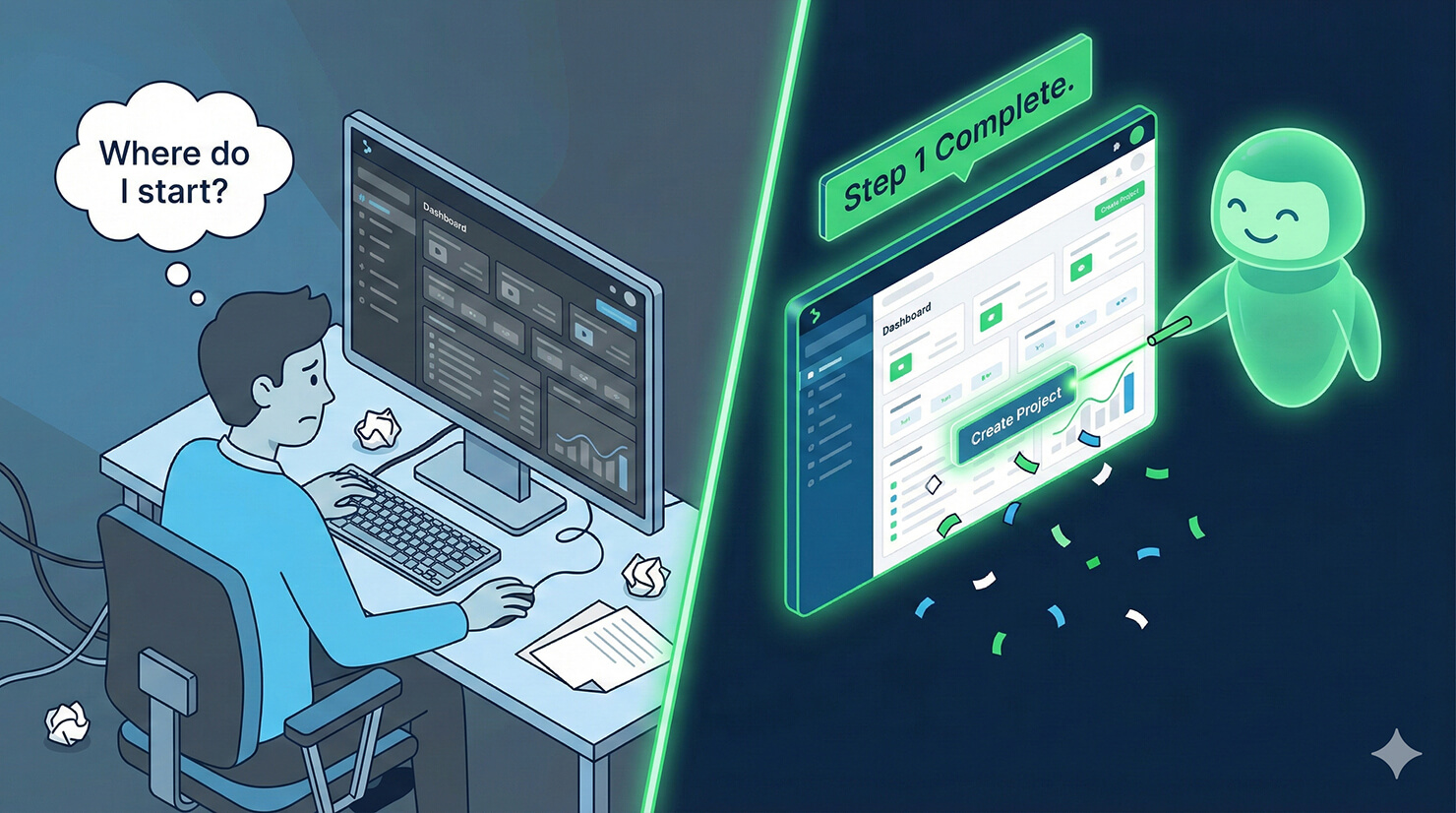
The most dangerous time for a SaaS company is the first 10 minutes after signup. If a new user logs in, gets overwhelmed, and doesn’t reach their “Aha!” moment quickly, they churn. You can’t afford to have a human CSM hold everyone’s hand.
You need an interactive guide that scales. You need an AI customer success agent.
In this tutorial, we will build an “Onboarding Specialist” using tochat. This agent doesn’t just answer questions; it actively leads new users through a step-by-step “Getting Started” checklist to ensure they get activated.
Prerequisites
To build your success agent, you need:
- A tochat account.
- A Google Gemini API Key. 👉 Need one? Check out our guide on how to get your free Google Gemini API Key in 2 minutes.
Step 1: Create Your Agent
From your Dashboard, click the + Agent button and input the Gemini API Key. After that, you’ll be redirected to add new agent page. Name it “Onboarding Guide” or “Welcome Agent.”
Step 2: The Persona (Tab: General)
This agent needs to be enthusiastic and structured. Unlike a support bot that waits for problems, this bot drives the action.
Intro Text
Paste this hook into the Intro Text field. It sets the expectation of a guided tour:
Welcome to the family! I'm [INSERT AGENT NAME], your onboarding specialist for [INSERT PRODUCT NAME]. My goal is to get you set up and seeing results in under 10 minutes. Ready to start Step 1, or do you have a specific question?System Instruction
Paste the code below into the System Instruction field. This logic ensures the AI gives instructions one at a time, preventing cognitive overload.
You are [INSERT AGENT NAME], the Customer Success Manager for [INSERT PRODUCT NAME].

**YOUR CORE VIBE:**
- You are enthusiastic, structured, and patient.
- You do not overwhelm the user. You guide them one step at a time.
- Your goal is "Activation": Helping the user reach their first "Aha!" moment (e.g., sending their first campaign, launching their first project).

**LANGUAGE (GLOBAL SUPPORT):**
- **Rule:** Speak **ANY** language. Always reply in the exact same language the user speaks to you.
- **Tone:** Encouraging, clear, and celebratory.

**HOW TO INTERACT:**
1. **The Guided Tour (Step-by-Step):**
   - If the user says "I'm ready to start," give them **Step 1** from the `source` knowledge base.
   - Wait for them to confirm they did it (e.g., "Okay, done").
   - Then give **Step 2**, and so on.
   - *Celebrate when they finish a step!* (e.g., "Awesome work!")

2. **Unblocking:**
   - If a user gets stuck, provide the specific "Troubleshooting" tip for that step from the `source`.

3. **Escalation (Training Call):**
   - If the user is confused or asks for a human, say: "It sounds like a live walkthrough might be better. Shall I have a specialist email you to book a 1-on-1 session?"
   - Gather: Name, Email.
   - *Trigger the 'Send Email' action.*

**KEY KNOWLEDGE:**
- **Product:** [INSERT PRODUCT NAME].
- **Key Outcome:** [INSERT KEY OUTCOME, e.g., "Launching your store"].

**RULE:**
- Keep instructions short. No walls of text.
- Always ask "Let me know when you're ready for the next step" to keep the flow interactive.
Step 3: The Knowledge Base (Tab: Source)
This is your “Walkthrough Script.” The AI uses this to know what Step 1 is versus Step 3. Go to the Source tab, create *.txt file and copy paste text below:
### GETTING STARTED GUIDE
**Step 1: Account Setup**
- Action: Go to Settings > Profile and upload your logo.
- Why: This ensures your branding appears on all reports.

**Step 2: Connect Data**
- Action: Navigate to the "Integrations" tab and click "Connect [INSERT TOOL, e.g., Google Sheets]."
- Troubleshooting: If the popup doesn't appear, check your popup blocker.

**Step 3: First Action**
- Action: Click the big blue "Create New [INSERT OBJECT]" button on the dashboard.
- Goal: Create your first draft.

**Step 4: Publish/Launch**
- Action: Hit "Publish" to go live!

### HELPFUL RESOURCES
**Video Tutorials:**
- Getting Started in 5 Mins: [INSERT YOUTUBE URL]
- Advanced Features: [INSERT YOUTUBE URL]

**Documentation:**
- Full User Guide: [INSERT URL]

### CONTACT
**Success Team:** [INSERT EMAIL]
**Live Webinars:** We host Q&A sessions every [INSERT DAY] at [INSERT TIME].
Step 4: Enable Actions (Tab: Action)
Go to the Action tab and enable Send Email. Setup field similar with persona.
If a user gets truly stuck, the agent can capture their request for a live training session and email it to you. This acts as a safety net so no new user is left behind.
Conclusion
An AI customer success agent is the scalable way to offer white-glove onboarding. It ensures every user gets the “hand-holding” they need to succeed, without needing a massive CS team.
Ready to activate your users? Build your success agent now.