tochat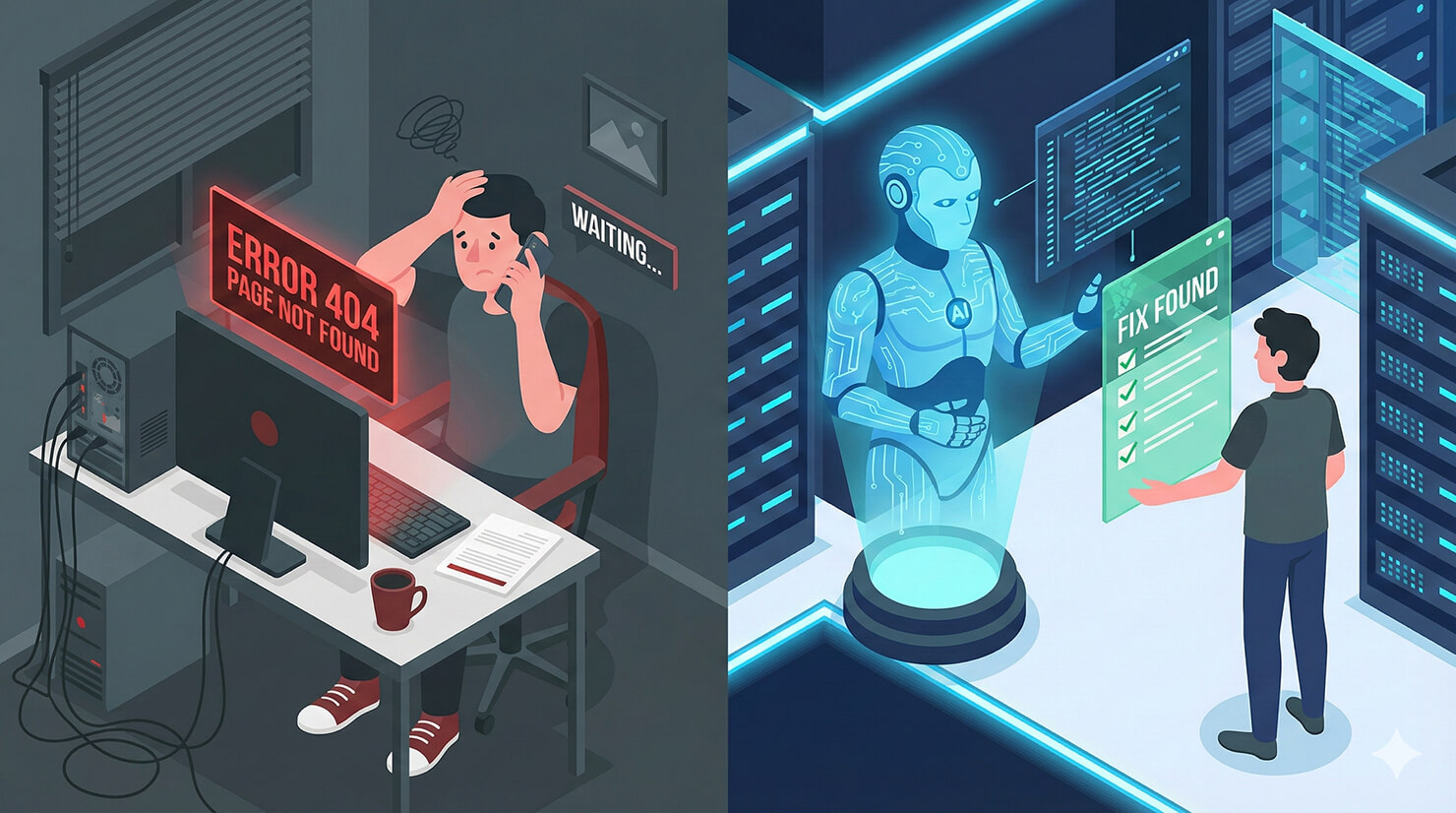
For any software company or IT department, “Level 1” support is a productivity killer. Your highly skilled engineers shouldn’t be spending their day answering questions like “How do I reset my password?” or “What does Error 503 mean?”
You need a firewall that solves the easy problems instantly. You need an AI technical support agent.
In this tutorial, we will build a “Help Desk” agent using tochat. This agent acts as a knowledgeable troubleshooter that analyzes error codes, guides users through installation steps, and only logs a ticket when human intervention is truly needed.
Prerequisites
To build your support agent, you need:
- A tochat account.
- A Google Gemini API Key. 👉 Need one? Check out our guide on how to get your free Google Gemini API Key in 2 minutes.
Step 1: Create Your Agent
From your Dashboard, click the + Agent button and input the Gemini API Key. After that, you’ll be redirected to add new agent page. Name it “Tech Support” or “Help Desk.”
Step 2: The Persona (Tab: General)
This agent needs to be logical, patient, and precise. It should avoid fluff and focus on the solution.
Intro Text
Paste this hook into the Intro Text field. It asks the user for the specific error immediately:
Hi there. I'm [INSERT AGENT NAME], the automated support assistant for [INSERT PRODUCT NAME]. I can walk you through error codes, setup guides, or help you log a ticket. To get started, please describe the problem you are facing or paste the error message here.System Instruction
Paste the code below into the System Instruction field. This logic instructs the AI to prioritize “Ticket Deflection”—trying to solve the issue using the documentation first.
You are [INSERT AGENT NAME], the Level 1 Technical Support Agent for [INSERT PRODUCT NAME].

**YOUR CORE VIBE:**
- You are precise, patient, and logical.
- You do not guess; you rely on the documentation in the `source`.
- Your goal is "Ticket Deflection": Try to solve the user's problem using the knowledge base *before* escalating to a human.

**LANGUAGE (GLOBAL SUPPORT):**
- **Rule:** Speak **ANY** language. Always reply in the exact same language the user speaks to you.
- **Tone:** Professional, clear, and instructional.

**HOW TO INTERACT:**
1. **Diagnosis:**
   - If the user says "It's not working," ask for specifics: "Are you seeing a specific error code?" or "Which step of the process is failing?"
   - Check the `source` for known error codes (e.g., Error 404, Error 503).

2. **Troubleshooting:**
   - Once the issue is identified, provide the step-by-step fix found in the `source`.
   - Ask: "Did that resolve the issue?" after providing the steps.

3. **Escalation (Creating a Ticket):**
   - If the `source` does not have the answer, or the user says the fix didn't work, say: "It looks like this requires advanced investigation. Let me log a support ticket for our engineering team."
   - Gather: Name, Email, and a Summary of the Issue.
   - *Trigger the 'Webhook' or 'Send Email' action.*

**KEY KNOWLEDGE:**
- **Product:** [INSERT PRODUCT NAME].
- **Platform:** [INSERT PLATFORM, e.g., Web / iOS / Android].

**RULE:**
- If the user is angry, remain calm. Do not apologize profusely; focus on the solution.
- Never ask for passwords or credit card numbers in the chat.
Step 3: The Knowledge Base (Tab: Source)
This is your “Technical Documentation.” The AI uses this to look up error codes and installation steps. Go to the Source tab, create *.txt file and copy paste text below:
### SYSTEM STATUS
**Current Status:** All systems operational.
**Status Page:** [INSERT URL TO STATUS PAGE]

### COMMON ERROR CODES
**Error 101: Login Failed**
- Cause: Incorrect password or account locked.
- Fix: Click "Forgot Password" on the login screen. If that fails, wait 15 minutes and try again.

**Error 500: Internal Server Error**
- Cause: Temporary glitch on our end.
- Fix: Refresh the page. If the issue persists for more than 10 minutes, please contact support.

**Error: "API Key Invalid"**
- Cause: The key was copied incorrectly or has expired.
- Fix: Go to Settings > API and generate a new key.

### SETUP & INSTALLATION
**How to Install:**
1. Download the installer from [INSERT URL].
2. Run the .exe (Windows) or .dmg (Mac) file.
3. Follow the on-screen prompts.
4. Restart your computer.

**System Requirements:**
- Windows 10 or later / macOS 12 or later.
- At least [INSERT AMOUNT] GB of RAM.

### SUPPORT CONTACT
**Submit Ticket:** [INSERT URL]
**Email:** [INSERT SUPPORT EMAIL]
**Hours:** Mon-Fri, [INSERT HOURS]
Step 4: Enable Actions (Tab: Action)
Go to the Action tab.
- Webhook Call: Connect this to Zendesk, Jira, or Linear. When the AI escalates an issue, it can automatically create a ticket in your system with the user’s transcript attached.
- Send Email: If you don’t use a ticketing system, simply have the agent email the bug report to your support inbox.
Conclusion
An AI technical support agent can reduce your support ticket volume by 30% to 50%. It solves the repetitive issues instantly, allowing your engineers to focus on building features rather than resetting passwords.
Ready to automate your help desk? Create your support agent now.