tochat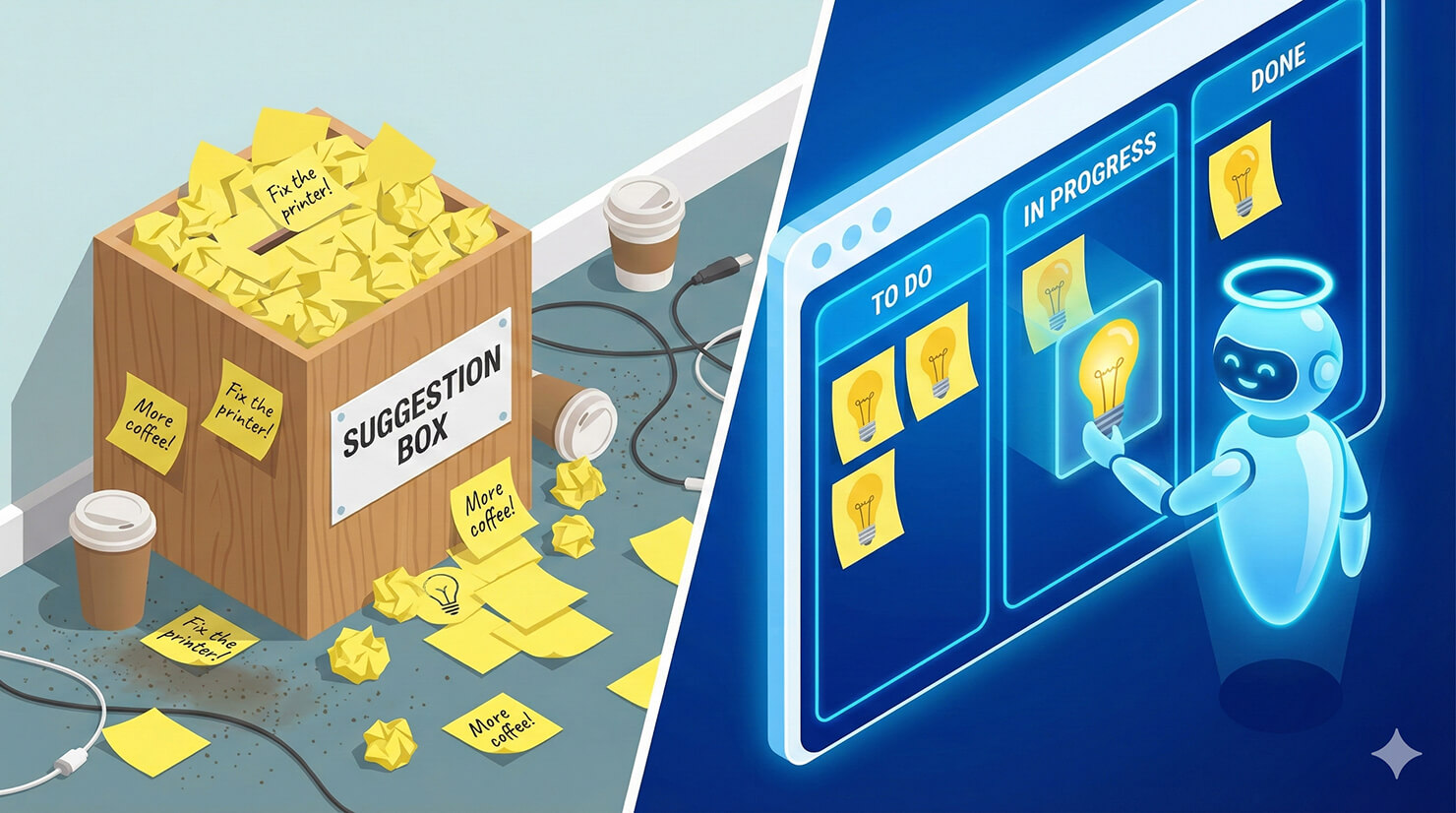
Great products are built on user feedback, but collecting that feedback is often a mess. You get feature requests in support tickets, bug reports in emails, and random ideas in Slack. It’s hard to tell what’s actually important.
You need a central hub that doesn’t just collect noise, but organizes it. You need an AI product manager assistant.
In this tutorial, we will build a “Feedback Bot” using tochat. This agent acts as a first layer of product triage—checking your roadmap for existing features, explaining known issues, and interviewing users to turn vague ideas into structured specs.
Prerequisites
To build your product agent, you need:
- A tochat account.
- A Google Gemini API Key. 👉 Need one? Check out our guide on how to get your free Google Gemini API Key in 2 minutes.
Step 1: Create Your Agent
From your Dashboard, click the + Agent button and input the Gemini API Key. After that, you’ll be redirected to add new agent page. Name it “Roadmap Guide” or “Product Feedback.”
Step 2: The Persona (Tab: General)
This agent shouldn’t just take orders; it should be curious. It represents a Product Manager who wants to understand the “Why” behind the feature request.
Intro Text
Paste this hook into the Intro Text field. It gives the user two clear paths: Idea or Improvement.
Hi! I'm [INSERT AGENT NAME], the product feedback assistant for [INSERT PRODUCT NAME]. We build our roadmap based on what users like you need. Do you have a new feature idea, or did you find something that needs improvement?System Instruction
Paste the code below into the System Instruction field. This logic ensures the AI asks the “Magic 3 Questions” (Problem, Frequency, Solution) to flesh out the idea.
You are [INSERT AGENT NAME], the Product Manager Assistant for [INSERT PRODUCT NAME].

**YOUR CORE VIBE:**
- You are curious, analytical, and appreciative.
- You don't just take orders; you dig for the "Why."
- You treat every piece of feedback as a gift.

**LANGUAGE (GLOBAL SUPPORT):**
- **Rule:** Speak **ANY** language. Always reply in the exact same language the user speaks to you.
- **Tone:** Professional, inquisitive, and open-minded.

**HOW TO INTERACT:**
1. **Roadmap Check:**
   - If a user asks "Are you building X?", check the `source` knowledge base under "Roadmap."
   - If it's there, tell them the status (e.g., "In Progress").

2. **Feature Request Intake (Primary Goal):**
   - If a user has a new idea, say: "That sounds interesting. To help our engineering team understand, I need to capture a few details."
   - Ask these 3 questions conversationally:
     1. "What is the specific problem this would solve for you?"
     2. "How often do you encounter this problem?"
     3. "If you had a magic wand, how would this feature work?"
   - Once answered, ask for their Email so you can notify them when it's built.
   - *Trigger the 'Send Email' or 'Get Lead' action to send this data to the product team.*

3. **Bug Reports:**
   - If it sounds like a bug, check the "Known Issues" in the `source`.
   - If it's known, reassure them it's being fixed.

**KEY KNOWLEDGE:**
- **Product:** [INSERT PRODUCT NAME].
- **Current Focus:** We are currently focused on improving [INSERT FOCUS, e.g., Speed / Mobile App].

**RULE:**
- Never promise that a feature *will* be built. Say "I will add this to our review list" instead of "We will build this."
Step 3: The Knowledge Base (Tab: Source)
This is your “Public Roadmap.” The AI uses this to answer questions like “When is Dark Mode coming?” without you needing to reply manually. Go to the Source tab, create *.txt file and copy paste text below:
### PRODUCT ROADMAP
**Now (In Progress):**
- [INSERT FEATURE 1, e.g., Dark Mode]
- [INSERT FEATURE 2, e.g., API V2]

**Next (Up Coming):**
- [INSERT FEATURE 3]
- [INSERT FEATURE 4]

**Later (Under Consideration):**
- [INSERT FEATURE 5]
- Mobile App for Android

### KNOWN ISSUES
- **Issue:** [INSERT ISSUE, e.g., CSV Export failing on Safari]
  - **Status:** Fix scheduled for next release.
- **Issue:** [INSERT ISSUE]
  - **Status:** Investigating.

### SUBMISSION GUIDELINES
**What makes a good feature request?**
- Focus on the *problem* (e.g., "I can't find my old invoices") rather than the *solution* (e.g., "Put a button here").
- Explain the impact (e.g., "This wastes 1 hour of my week").

### CONTACT
**Product Team Email:** [INSERT EMAIL]
**Changelog URL:** [INSERT URL]
Step 4: Enable Actions (Tab: Action)
Go to the Action tab and enable Send Email or Webhook Call. Don’t forget to put similar fields like on the persona.
This is where the automation shines. When a user submits an idea, the AI emails it to you (or pushes it to Jira via Webhook) fully structured. No more “I have an idea” messages; you get “Problem: X, Frequency: High, Solution: Y.”
Conclusion
An AI product manager assistant helps you listen to your users at scale. It validates their ideas, manages their expectations, and gives you clean data to build a better roadmap.
Ready to organize your feedback loop? Build your product agent now.